This custom launcher does all of the work for you!
Just download the DOAR Launcher.exe, run the executable, et voila!
Run the UOClassicSetup executable in your Downloads folder and you can select all the defaults for installation, or point it to your own folder
Then go to Start menu > search for Ultima Online > let the patching happen
If you can't find it there, open Explorer and navigate to the install directory (default is C:\Program Files\Electronic Arts\Ultima Online Classic\) and run either UO.exe or UOPatch.exe
That's it! The client is now ready to be used
Next is to install an assistant to decrypt the client connection
After downloading UOS_Latest executable, run the installer and select the defaults
Now, if you didn't create a Desktop shortcut, go to Start > UO Steam > UO Steam
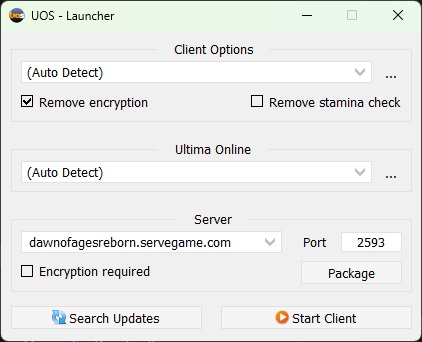
Here are the configuration points you need:
Leave Client Options as "(Auto Detect)" and keep the Remove encryption checkbox checked
Leave the Ultima Online as "(Auto Detect)"
Server information:
dawnofagesreborn.servegame.com
Port: 2593
Uncheck Encryption required
Final result should look like this:
You are now ready to click on Start Client!
Unpacking Razor Enhanced requires a little more hands-on:
You'll need to navigate to your Downloads folder in Explorer
Hold shift and right click on the RazorEnhanced____.zip
Click on Extract All... and give it a path to extract to (I recommend C:\RazorEnhanced\ to easily find it later)
Navigate to the folder you unpacked the ZIP file to and run RazorEnhanced.exe (may require admin privileges)
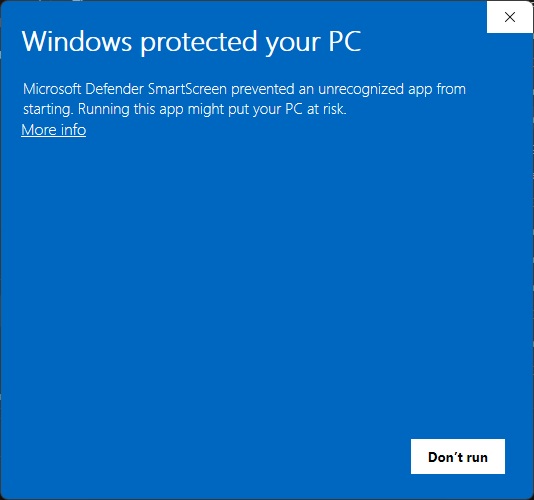
If you see the screenshot below, just click on More info
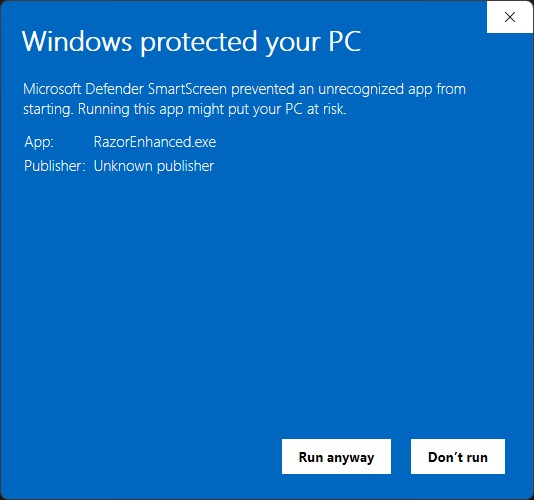
Now click on Run anyway
Now that we've angered Windows, Razor Enhanced should launch
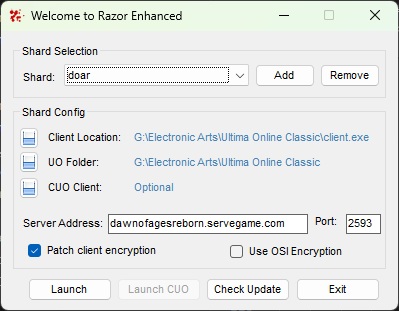
Here are the configuration points needed for Razor Enhanced:
Click on the Add button in the Shard Selection section
Give it a name (DOAR or Dawn of Ages Reborn) and click Add
Shard Config:
Click the button on the left of Client Location
Navigate to the location you installed your UO Client (see UO Client tab instructions)
The above step should automatically populate the UO Folder, if it does not, click on the button to the left and navigate to the installed folder
Server Address: dawnofagesreborn.servegame.com
Port: 2593
Check the box for Patch client encryption
Now the Launch button should be active and you're ready to go!
Unpacking ClassicUO requires as much effort as Razor Enhanced
Navigate to your downloads folder
Hold Shift and right click on the ClassicUOLauncher.zip
Click on Extract All... and give it a path to extract to (I recommend C:\ClassicUO\ to easily find it later)
Navigate to the folder you unpacked to and double click on the ClassicUOLauncher.exe
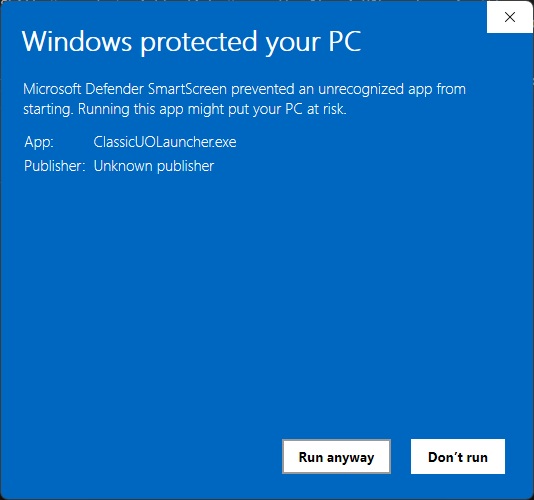
If you see the screenshot below, just click on More info
Now click on Run anyway
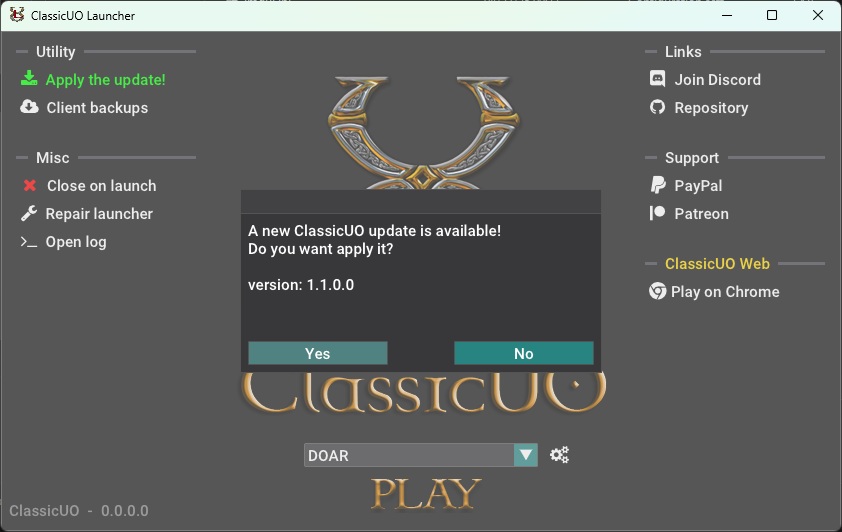
Now that the ClassicUO Launcher is up, it will want to update the launcher and the ClassicUO client, click on Yes
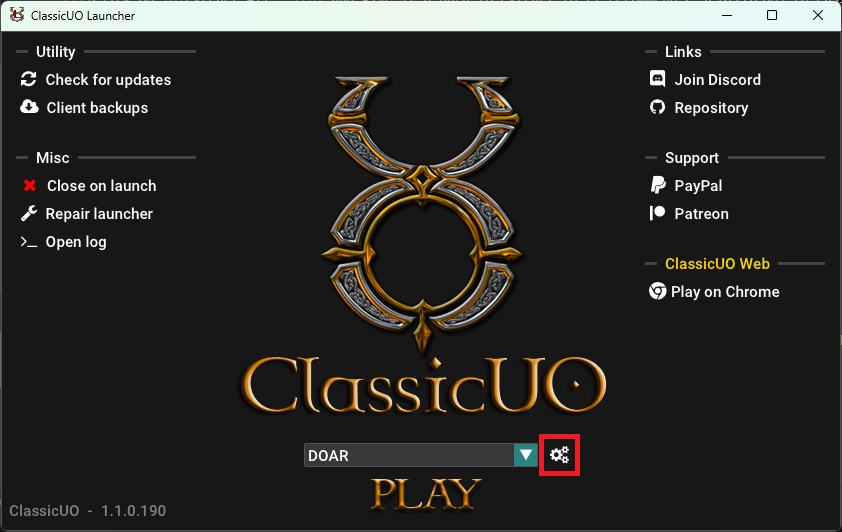
Once the update is complete, click on the gear icon next to the drop down at the bottom
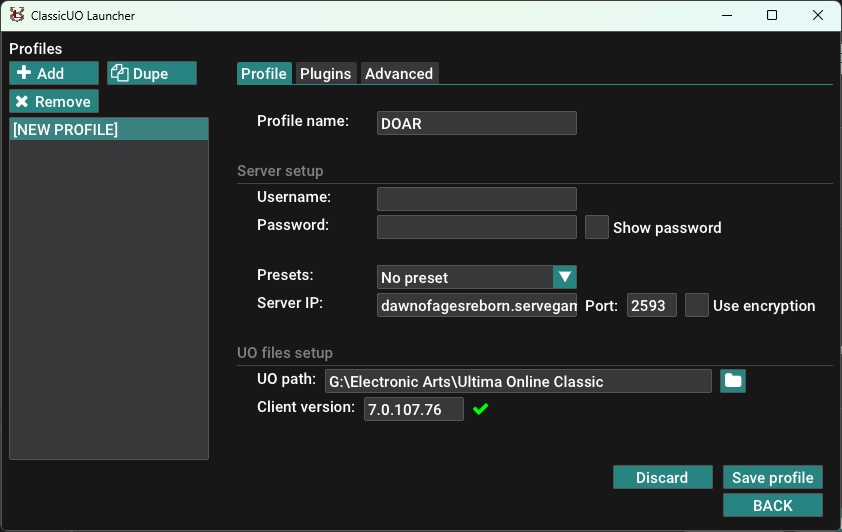
Now you will need to fill in the server information:
Click on Add, to create a new connection profile
Give it a Profile name, such as DOAR or Dawn of Ages Reborn
Server IP: dawnofagesreborn.servegame.com
Click on the folder icon next to the UO path textbox and navigate to where you installed the UO Classic client (see UO Client instructions)
Now your profile should look something like this:
Click on Save profile and click BACK
Back on the main CUO Launcher screen, you can hit PLAY to launch the client!
Unpacking Stealth client requires as much effort as Razor Enhanced/ClassicUO
Navigate to your downloads folder
Hold Shift and right click on the Stealth_Latest.rar
Click on Extract All... and give it a path to extract to (I recommend C:\UOStealth\ to easily find it later)
Navigate to the folder you just unpacked Stealth to and double click on the Stealth.exe
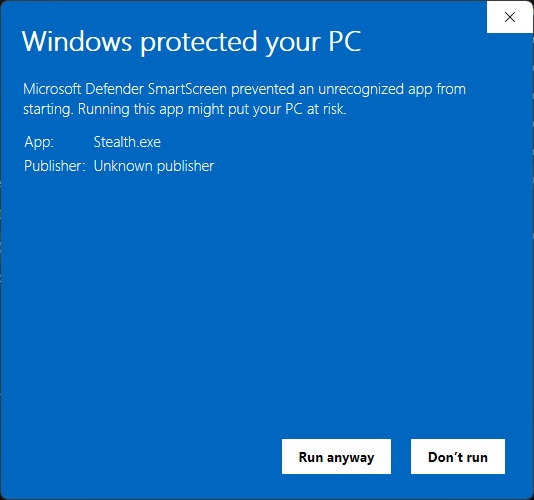
If you see the screenshot below, just click on More info
Now click on Run anyway
Now that Stealth is up, we need to start configurations
Click on the pencil icon next to Profiles
Click on the pencil icon next to Shard
Click on the icon next to Selected Client:
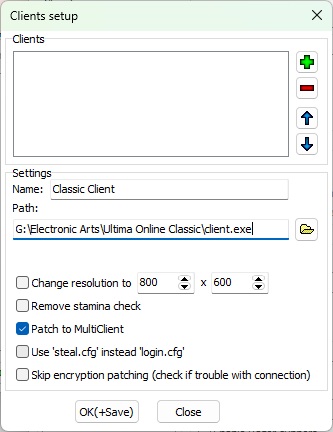
Type in a Name and click on the folder icon next to Path: then navigate to the client you want to use (ClassicUO or UO Classic client)
The final result should look similar to this:
Click on the + button and then click OK(+Save) then Close
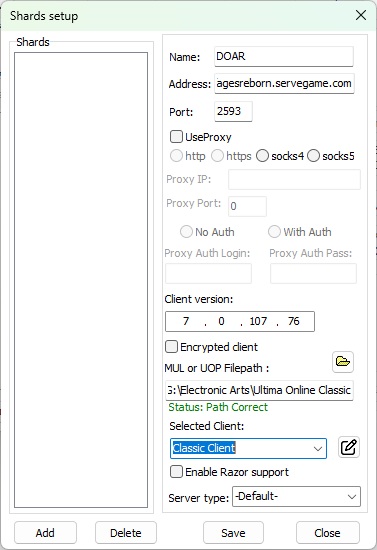
Going back to the Shards setup screen, fill out the following information:
Name: DOAR or Dawn of Ages Reborn
Address: dawnofagesreborn.servegame.com
Port: 2593
Client version: 7.0.107.76
Click on the folder icon, next to MUL Filepath and navigate to your UO Classic Client install folder
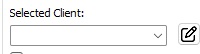
Use the drop down for the Selected Client: and select which client you want to use
Your configuration should look something like this:
Now click Add and then Save, then Close
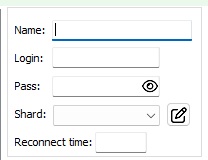
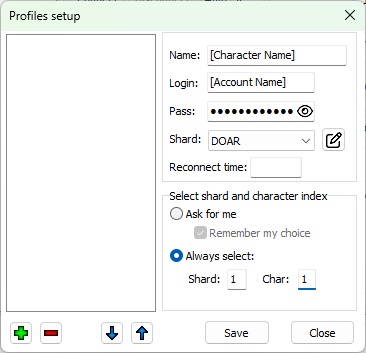
Back on the Profiles setup screen you'll need to fill out the following information:
Name: - Typically the character name
Login: - Your userid
Password: - Your UO password
Shard: - Select the DOAR shard you created on the previous steps
Character selection:
This one is a bit tricky, as it's all in how you want to play
Ask for me - This option will prompt you which character you would like to play with
Always select: - I always force each profile into the specific shard and charcter I want to play with
If your screen looks similar to the screen below, then click the +, click Save, then click Close
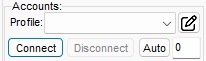
Now that we are back on the main Stealth screen, we can click the Connect button, below the Profile drop down
If no errors occur, then you are now logged into DOAR with a headless client as the character you setup
Once connected, you can click on the START CLIENT to connect a client to your connection, so you can see what's going on
Unpacking TazUO client requires as much effort as Razor Enhanced/ClassicUO
Navigate to your downloads folder
Hold Shift and right click on the TazUO-Launcher.win-x64.zip
Click on Extract All... and give it a path to extract to (I recommend C:\TazUO\ to easily find it later)
Navigate to the folder you just unpacked TazUO to and double click on the TazUOLauncher.exe
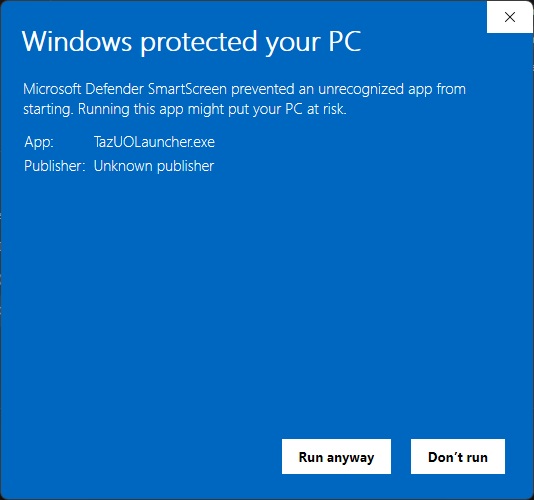
If you see the screenshot below, just click on More info
Now click on Run anyway
Now that the TazUO launcher is up, it should say that there are no clients found
Click on Download Now
Once the client is downloaded, click on the drop down for Select a profile then click on [ Edit Profiles ]
Click on the New button
Click on Blank Profile
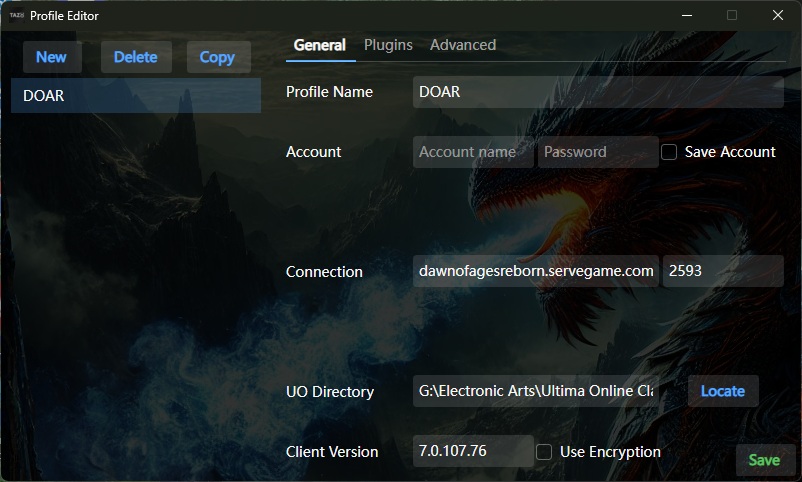
Now click in the Profile Name field and put in DOAR or Dawn of Ages Reborn
Connection field needs to be dawnofagesreborn.servegame.com
UO Directory click on the Locate button and navigate to where you installed the UO Classic Client
Now you should have something that looks like this:
Click on the Save button and close the profiles window
From the launcher window, click on the Profiles dropdown and click on the new DOAR profile
Click on Play!
After downloading MobileUO to your device, open it and tap on New Custom Configuration
The configuration points for this screen are:
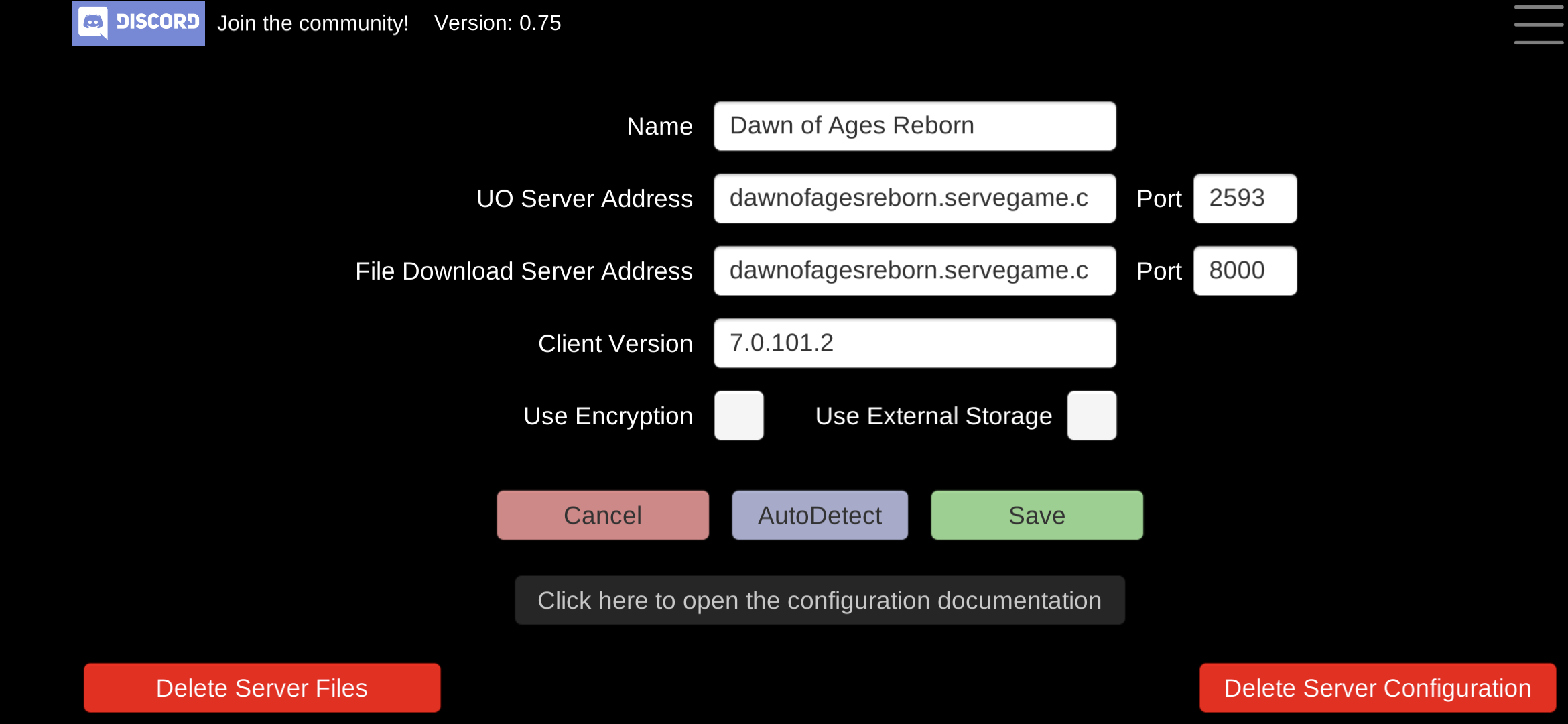
Name: DOAR or Dawn of Ages Reborn
UO Server Address: dawnofagesreborn.servegame.com Port: 2593
File Download Server Address: dawnofagesreborn.servegame.com/UO.zip Port: 8000
Client Version: 7.0.101.2
Your configuration should look similar to this:
Now tap on Save
Now that you have a server configured for connection, tap on the newly created button to download the client files